ATM: Player Shop Overview
Overview of the ATM Player Shop system, including selling, stock listings, discounts, sales history, and shop customization.
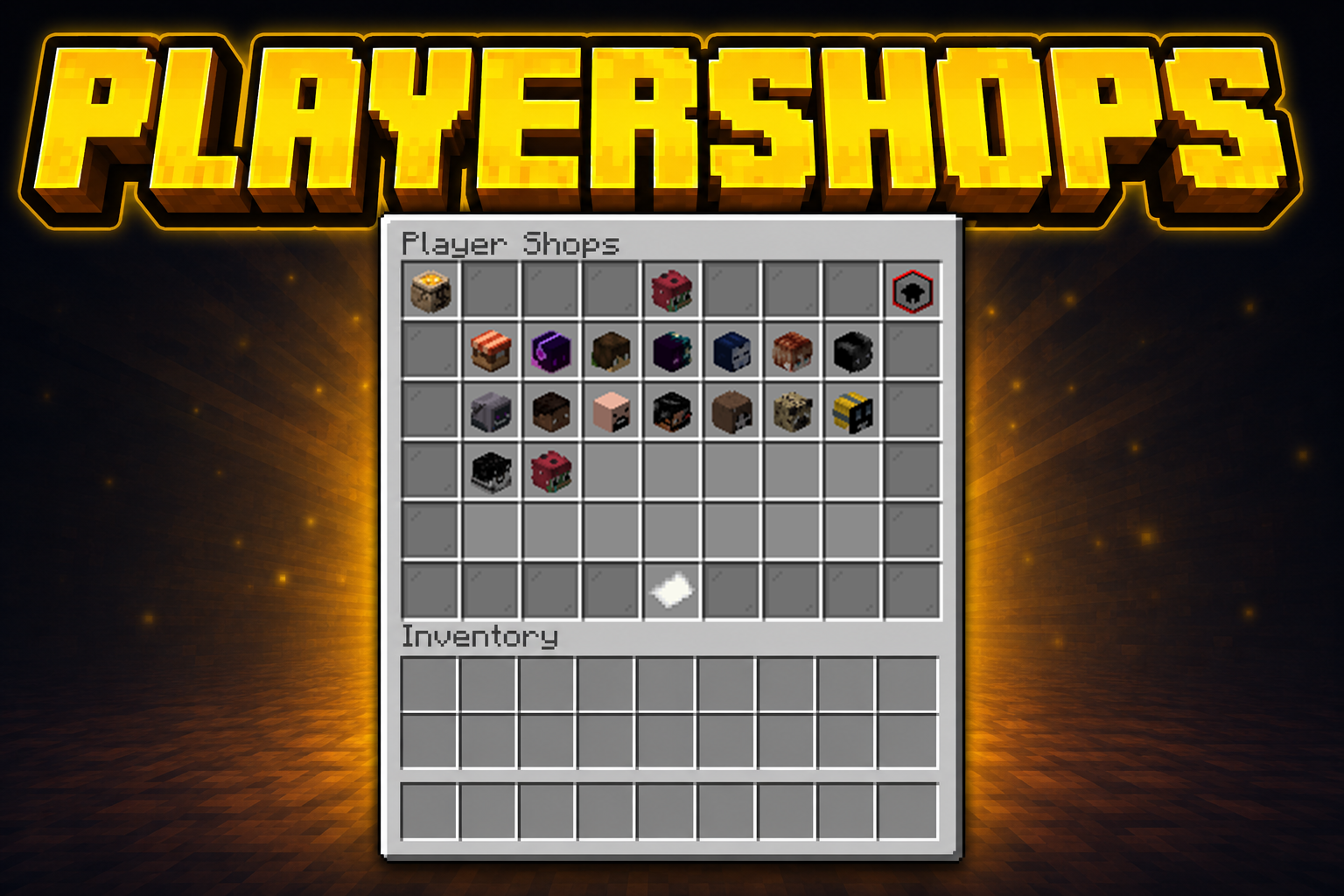
Here is a quick overview of the ATM Player Shop system, including browsing other player listings, selling your own items, tracking sales, and customizing your shop.
Player Shop
Buy and sell items through player-owned shops with searchable listings, a cart system, stock support, and shop-wide discounts.
-
Shop overview:
/playershopopens the full Player Shop overview so you can browse available shops. -
Search and browsing: Search listings by item name or ID and sort shops by things like amount, price, name, recent activity, stock, and discounts.
-
Shopping cart: Add listings to a cart, review totals, and confirm purchases before checkout.
-
Sales history: Sellers can review recent buyers and sold items through the built-in sales log.
-
Discounts: Shops can run timed discounts, clear them, and announce them to the server.
-
Customize: Set your shop name and frame color.
-
Commands:
/playershopopens the Player Shop overview./playershop search <term>searches active listings./playershop myopens your own shop./playershop sell <price> [count] [stock] [title]lists the item in your main hand./playershop stock <price> [count] [stock]restock a listing from the item in your main hand./playershop sales [limit]shows your recent sales./playershop statsshows your total items sold and revenue./playershop my name <name>sets your shop name./playershop my color <color>sets your shop frame color./playershop discount set <percent> [minutes]sets a shop discount./playershop discount clearclears your active discount./playershop discount announceannounces your current discount in chat./playershop guideopens the in-game guide.
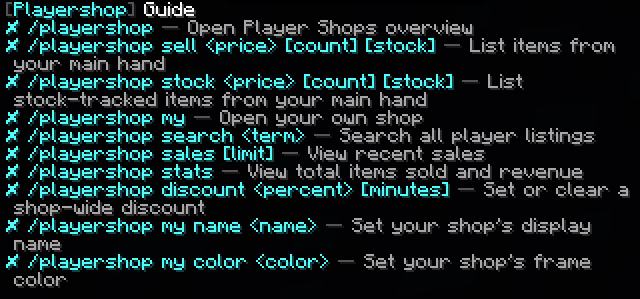
Selling Items
List items directly from your main hand and build a shop that other players can browse at any time.
- Quick listing flow: Hold an item and use
/playershop sellto create a normal listing. - Flexible stack size: Set the listing price, item count, optional stock amount, and an optional custom listing title.
- Restock-style selling: Use
/playershop stockor/playershop sellwith the same price and amount to restock a listing. - Manage your listings: Open your own shop from the menu or with
/playershop my. Left-clicking your own listings removes the items from the shop.
In this example, you sell x32 Oak Logs for 5 Bitecoins, with a stock of 64 items:

To restock, you can either run the command again while holding the item in your hand, or use the stock command. Use the same price and amount (5 Bitecoins for x32 Oak Logs), and it will restock the existing listing instead of creating a new one.

Shopping Cart Controls
The Shopping Cart is designed for quick shopping once you know the click pattern.
- Left-click on a listing: Toggles the item in your Shopping Cart. If it is not in the Shopping Cart yet, it adds it. If it is already in the Shopping Cart, it removes it. Items added to the shopping cart are shown as enchanted, so you know which items you have already added.
- Right-click on a listing: Adds 1 more unit of that listing to the Shopping Cart instead of toggling it off.
- Double-click on a listing: If you click the same listing again quickly, it is treated like a right-click and adds more instead of removing it.
- Shift + left-click on a listing: Adds the maximum available amount for that listing to the Shopping Cart.
- Shift + right-click on a listing: Removes 1 unit of that listing from the Shopping Cart. If that brings the amount to 0, the listing is removed from the Shopping Cart.
- Clear Shopping Cart button: The red barrier button removes everything from the Shopping Cart at once.
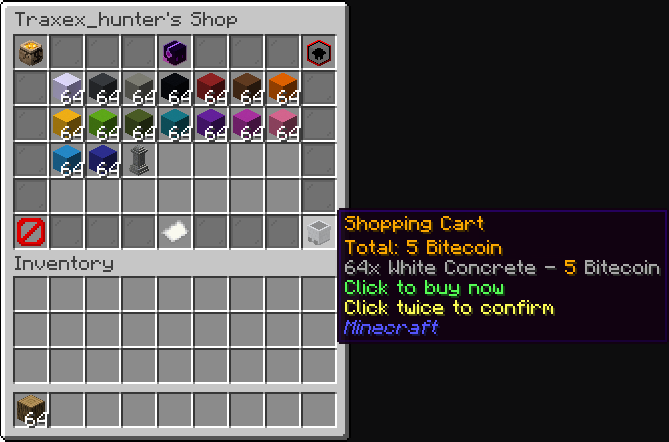
- Shopping Cart tooltip: The Shopping Cart shows the total Bitecoin cost and previews up to 10 Shopping Cart entries.
- Shopping Cart click to buy: Clicking the Shopping Cart once starts checkout confirmation.
- Double-click the Shopping Cart to confirm: Click the Shopping Cart a second time within a few seconds to actually buy the items.
This means the normal flow is:
- Left-click to add an item fast.
- Right-click or double-click the same listing to increase quantity.
- Shift + left-click to fill to max stock.
- Shift + right-click to reduce the Shopping Cart by one unit.
- Click the Shopping Cart twice to confirm the purchase.
In this example, we added 64x White Concrete to the shopping cart. We can see the total price of all items, as well as the price of each item added.
Filters
The Player Shop also includes quick filters to help you find the right listings faster.
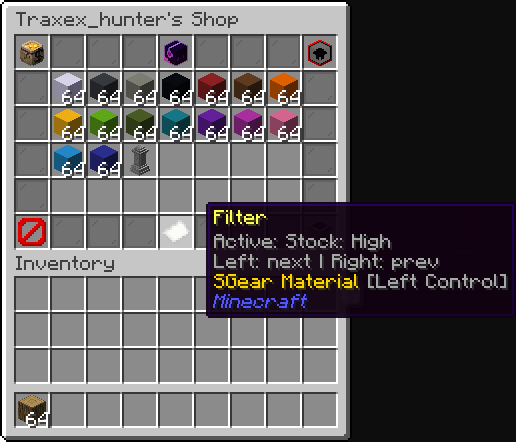
- Shop listing filters: Inside shop browsing and search results, you can sort by Amount, Price: High, Price: Low, Name, Alphabetical, Most Recent, and Stock: High.
- Overview filters: In the main Player Shop overview, you can switch between Alphabetical, Recently Added, and Discount to find active shops more easily.
- Best use cases: Use Price: Low for cheap deals, Stock: High for bulk buying, Most Recent for fresh listings, and Discount when you want to browse shops with active promotions first.
Here, we used the filter to sort the items by highest stock.
Search Command
Use the search command to quickly find listings by item name or ID without having to manually browse every shop.
- Command:
/playershop search <term>searches active listings. - Useful for: Finding specific items faster, comparing prices, and checking which shops currently have stock.
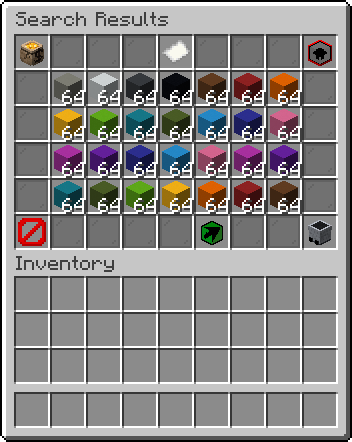
After searching for a term, the menu opens and shows all matching items. From there, you can simply buy what you are looking for.
Stats & Sales Commands
These commands give you a quick overview of your shop performance and recent sales.
- Stats:
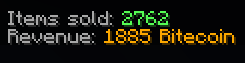
/playershop statsshows your total items sold and total Bitecoin revenue. - Sales log:
/playershop sales [limit]shows your recent sales (optionally limit how many entries are listed).
For stats, you get a chat output showing how many sales you made and your overall revenue. For sales, you can view your recent sales, including the amount, price, timestamp, and buyer.
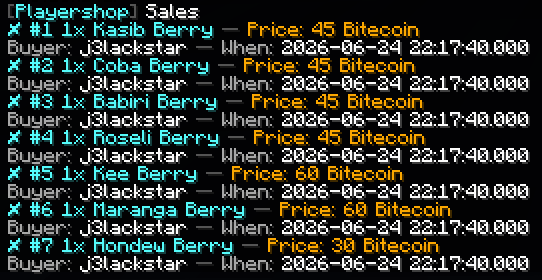
If you’re online, you’ll also see live chat messages when a player buys something from your shop.

Discounts
Use timed discounts to bring in more buyers.
- Timed discounts:
/playershop discount set <percent> [minutes]lets you run temporary promotions. - Discount announce:
/playershop discount announceposts your active discount to online players. - Discount clear:
/playershop discount clearremoves the active discount early.
In this example, it sets a discount of 10% for 30 minutes.

For a fee of 5 Bitecoins, you can announce your discount to online players.

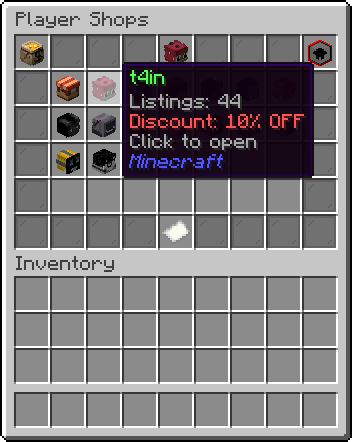
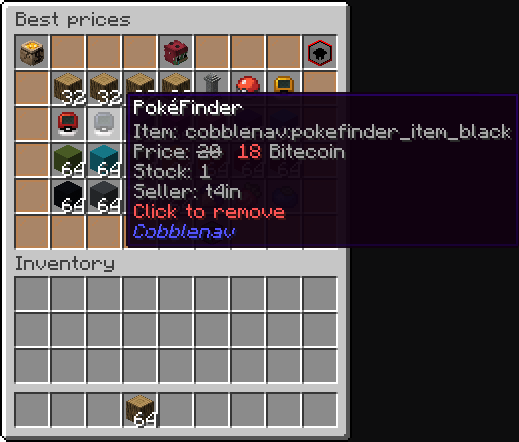
This is how the discount looks in the player shop menu and inside the shop. The discount is automatically applied to each item.
Shop Customization
Customize your shop to make it easier to recognize and more personal.
- Custom shop name: Rename your shop with
/playershop my name <name>. - Frame color: Change your shop pane color with
/playershop my color <color>.
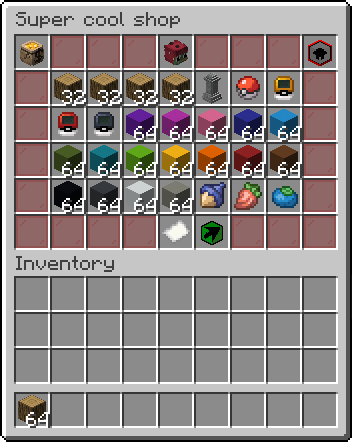
In this example, we change our player shop name to “Super Cool Shop” and set the color to red.


Based on this example, this is how our custom player shop looks with the selected title and color.
Notes
- Personal shops: Most Player Shop features are centered around each player’s own shop.
- Live economy: Prices, stock, and discounts interact directly with the Bitecoin economy.
- More polish coming: The Player Shop system already covers browsing, selling, stats, and discounts, with room for more quality-of-life updates later.